Chat with Threadplane
Let's use Threadplane for the chat screen and keep Hashbrown on the server. Threadplane's AG-UI adapter will send the conversation to our existing /api/chat endpoint and render the streamed response through <chat>.
We'll start with text messages. If you're replacing an existing chatResource screen, follow the migration checklist before removing its tools or saved history.
Send a product question and follow up through Threadplane’s installed Angular chat and AG-UI adapter.
Recorded in the installed Angular consumer using published Threadplane packages and the actual Hashbrown adapter. Provider-native responses are scripted locally. Presentation styles added. No live model call or narration. Read the text walkthrough.
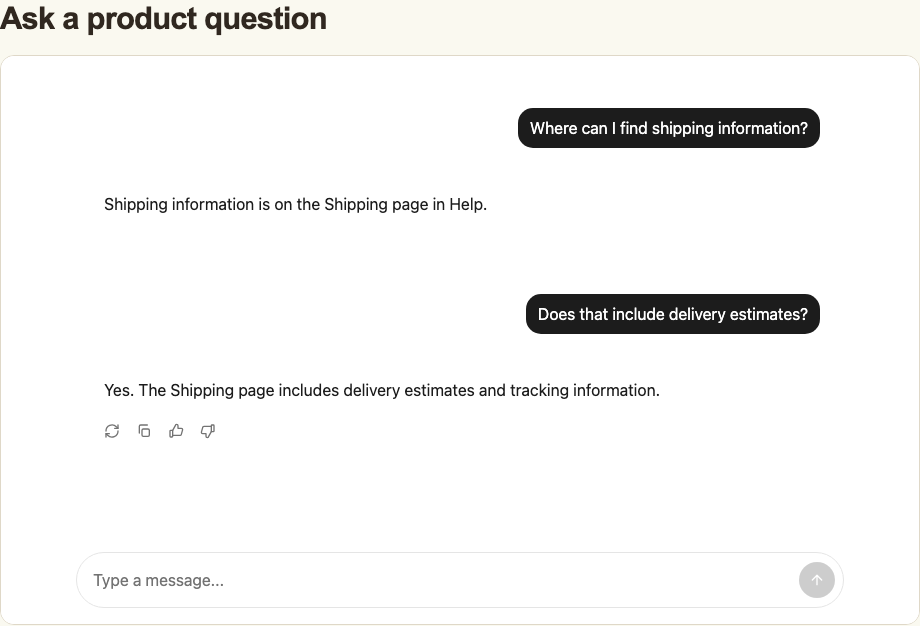
This walkthrough uses a separately installed Angular consumer and the actual Hashbrown OpenAI server adapter. Provider-native Responses events are scripted over local HTTP; there is no live model call or provider key. Presentation styles, header, and footer are added for the recording. The Angular footage uses its own components and input controls.
Before we start
Start with the Quickstart server and an Angular application. This walkthrough’s installed build uses Angular 22.1.1 and Threadplane chat and AG-UI 0.3.3. The packages support Angular 20–22; satisfy the peer dependencies for the version you choose. Hashbrown's text adapter accepts the standard AG-UI run input and streams AG-UI events, which Threadplane's adapter can consume.
Keep the provider API key and model on the server. Continue using the same-origin /api/chat path and the Quickstart development proxy to http://127.0.0.1:3001.
This frontend will use Threadplane's AG-UI runtime. It doesn't create a Hashbrown chatResource. Other parts of the application can keep using Hashbrown resources independently.
Install the chat and AG-UI adapter
In your Angular frontend project, install:
npm install @threadplane/chat@0.3.3 @threadplane/ag-ui@0.3.3 @ag-ui/client@1.0.2 @ag-ui/core@1.0.2 marked@^16.0.0marked is the chat renderer's Markdown parser peer. Keep the Threadplane packages on matching versions and satisfy the peer dependencies reported by npm. This example follows the Threadplane AG-UI adapter and chat composition APIs.
Add a theme to your global stylesheet:
@import '@threadplane/chat/themes/default-light.css';Create the chat screen
Create src/app/threadplane-chat.ts. provideAgent creates an AG-UI HTTP agent for /api/chat; injectAgent returns that agent to the component. ChatComponent supplies the transcript, composer, and active-run controls.
The component-scoped provider gives this screen its own agent. The adapter registers cleanup with that injector's DestroyRef; leaving the screen disposes the agent. Move the provider to a longer-lived injector only when that longer conversation lifetime is intentional. Don't create a second agent for the same visible conversation.
Mount the screen
Bootstrap the component in src/main.ts:
Replace the root element in src/index.html with:
<app-threadplane-chat></app-threadplane-chat>Keep the Quickstart /api/** proxy pointing to http://127.0.0.1:3001. Start the Quickstart server in one terminal, then run the frontend from your Angular project in another:
ng serve --proxy-config proxy.conf.jsonThis standalone screen doesn't need provideHashbrown; retain that provider if other mounted components still use Hashbrown resources.
Try the conversation
Type Where can I find shipping information? and select Send message. You should see the question and a streaming assistant reply. Then send Does that include delivery estimates? The adapter sends the earlier conversation with this follow-up to the same endpoint.
Enter sends; Shift+Enter adds a line. Accepted sends clear the draft and return focus to the composer. The welcome composer becomes the conversation's composer after the first message.
Select Stop generating during a response to cancel the active request. Text already received stays in the conversation with the tested Threadplane 0.3.3 adapter. Wait for Send message to return, then send a new message explicitly when you're ready to continue.
No request is required to display an empty chat. A failed run is displayed through the adapter's error state. Check the frontend proxy, server process, and provider configuration before sending another message.
The scripted walkthrough answers “Shipping information is on the Shipping page in Help,” then confirms that it includes delivery estimates and tracking information. A live model's wording and content depend on the instructions and product information your server supplies. The recording demonstrates the installed UI and request path, not a model's knowledge of your product.
Keep policy on the server
The system value previously passed to chatResource doesn't move into provideAgent. If those instructions still matter, put trusted instructions and context in the server's request handling before enabling the new screen. See server request customization.
The AG-UI adapter changes how the browser talks to the endpoint. Authentication, authorization, thread ownership, request limits, and provider credentials remain application responsibilities. Use the public endpoint pattern before connecting real customer data. A message or state value supplied by the browser can't establish the caller's identity or permission.
The chat can display capabilities the backend emits. Replacing the UI doesn't translate a Hashbrown component registry, browser tool handler, structured-output schema, or saved thread store into Threadplane configuration.
Next steps
Use Migrate chat presentation to Threadplane for an existing app. Review Message history before restoring conversations, and Threadplane's AG-UI documentation for adapter-specific configuration.